Guide
How to Use AI for Spreadsheets and Data Entry
How to turn messy PDFs, receipts, and pasted text into clean spreadsheet rows with AI, covering Excel, Google Sheets, and when a formula is faster.

Name the columns and format you want, paste or upload the source (PDF, receipt text, copied table), and ask the AI to extract the rows. Spot-check numbers and dates before using the result. For Excel and Google Sheets, AI handles irregular input well but cannot replace a careful human review of totals.
Spreadsheets are where work gets stuck. The data exists, somewhere. It is buried in a PDF, split across forwarded emails, or pasted from a table that arrived as a wall of undifferentiated text. Getting it into the right shape has historically required either patience, power query experience, or a colleague you owe a favor. AI tools have closed most of that gap, provided you give them a clear instruction.
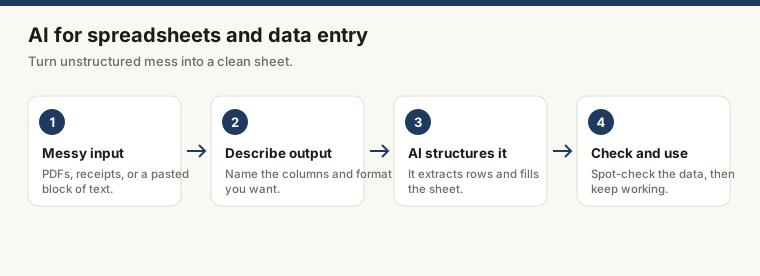
The basic workflow
The method is the same regardless of source format:
- Name the columns you want
- Describe any formatting rules (date format, currency symbol, blank vs. zero for missing values)
- Provide the source (paste text, or upload a file)
- Ask the AI to return a table
- Paste the result into your sheet and verify
That last step is not optional. AI reads document structure well and makes arithmetic errors rarely, but “rarely” is not “never.” Spot-check every total and every date before the data feeds anything downstream.
Turning a PDF into a spreadsheet
The workflow turn a PDF’s data into a spreadsheet covers this end-to-end, but the core idea is simple: upload the PDF to a vision-capable AI and write a prompt like this one.
“Extract all line items from this invoice as a table. Columns: Date, Vendor, Description, Quantity, Unit Price, Total. Use ISO date format (YYYY-MM-DD). If a field is blank, leave the cell empty. Do not sum rows.”
The “do not sum rows” instruction earns its place. AI tools occasionally add a totals row without being asked, which then gets pasted into the sheet and silently double-counts.
For a native approach that does not involve copying from a chat window: Microsoft 365 includes a “Data from Picture” option in Excel (Insert > Data > Data from Picture) that works on screenshots or phone photos of tables. Google Sheets imports structured PDFs via File > Import. Both are faster for simple, well-formed tables; AI handles irregular layouts and PDFs with multiple tables on one page better than either.
Working with receipts and pasted text
Receipts are a good test case precisely because they are consistently inconsistent. Different vendors format them differently, amounts appear in different positions, and many arrive as email text rather than clean files.
The approach from how to automate everyday tasks with AI applies here: paste the receipt text and describe the rule. A prompt that works reliably:
“Here are several receipts pasted as plain text. For each one, extract: Vendor, Date (YYYY-MM-DD), Total Amount (number only, no currency symbol), Category (Travel / Meals / Software / Office Supplies / Other). Return one row per receipt as a markdown table.”
Paste the result into your sheet. Google Sheets parses a markdown table pasted directly into a cell. In Excel, paste into a text editor first, save as .csv, then import.
One pitfall worth knowing: AI sometimes splits a single receipt into two rows when the format breaks across a page. Scan for duplicate vendors on the same date before the sheet goes anywhere useful.
Excel and Google Sheets: where AI fits in
Excel
Microsoft 365 has Copilot built in (paid add-on) for natural-language operations: cleaning columns, suggesting formulas, generating pivot tables, all from inside the application with direct access to named tables.
Without Copilot, the standard path is: extract data via ChatGPT or Claude, paste into the sheet, use Excel’s own tools (flash fill, power query, data validation) to clean and structure it.
Excel’s formula engine is faster than AI for calculations. If you need to sum a column, apply a conditional format, or run a VLOOKUP, write the formula. AI is most useful at the extraction and reformatting layer, not the calculation layer. Knowing where one ends and the other begins saves a lot of prompting.
Google Sheets
Google Workspace includes Gemini in Sheets (Business and Enterprise plans) for natural-language column cleaning, value extraction, and formula suggestions in a side panel.
Free-tier users use the same paste-from-AI approach. Sheets is particularly forgiving about pasted formats: markdown tables, TSV, and CSV all parse reasonably well.
One Sheets advantage for AI workflows: the ImportHTML and ImportXML functions pull data from a public web page directly into a cell range with no AI required. If the source is a table on a website, that is usually faster than pasting through a chat window.
Common pitfalls
Numbers and currency
AI output sometimes includes currency symbols inside number cells, which breaks formulas downstream. Ask explicitly for numbers without symbols and format the column as currency in the sheet afterward.
Date formats
AI defaults to the date format implied by context or training data, which may not match your system locale. Specify the format in the prompt. Asking for YYYY-MM-DD gets consistent results that import correctly in both Excel and Sheets, regardless of where the source document originated.
Missing rows
When processing a long document, AI occasionally drops rows near page breaks or where a table continues across two pages. After pasting, check the row count against the source. This takes thirty seconds and has saved hours.
Merged cells
PDFs with merged header cells often produce garbled output. If a table has merged cells (a single “Q1 2025” spanning three month columns, for example), describe the intended structure explicitly in the prompt. The AI cannot see the merge; you have to explain it.
When a formula is faster than AI
AI adds friction when the task is purely computational. Clean data in a sheet, needing a sum, an average, a conditional, a VLOOKUP: write the formula. Excel and Sheets both have built-in formula help, and asking an AI to write or explain a formula (rather than to process data) is usually the most efficient use of the tool anyway.
The split: AI for getting data into the sheet; formulas for working with data once it is there.
A short comparison table
| Task | Best tool |
|---|---|
| Extract rows from a PDF | AI (vision model) or Excel Data from Picture |
| Clean inconsistent text in a column | AI or Sheets Gemini / Excel Copilot |
| Sum, average, conditional logic | Formula |
| Pull data from a public web table | Sheets ImportHTML |
| Categorize a list of transactions | AI (prompt with a fixed category list) |
| Generate a pivot table | Excel Copilot / Gemini in Sheets or do it manually |
Where to go next
For handling data at volume or setting up a repeatable extraction step, how to automate everyday tasks with AI covers scheduling and repeating these workflows without doing them by hand each time.
For a broader look at what AI tools are worth using day to day, see the best AI productivity tools.
Frequently asked questions
Can AI read a PDF into Excel?
Yes, with caveats. A vision-capable AI (GPT-4o, Claude with file upload, or Gemini) can read a PDF and return structured rows you paste into Excel. For a native round-trip, Adobe Acrobat and Microsoft 365 both include PDF-to-table conversion. Verify every number after import; formatted PDFs and scanned pages produce more errors than plain-text PDFs.
Is the data accurate?
AI extraction is reliable for standard formats and degrades with unusual layouts, handwriting, or low-quality scans. Treat AI-extracted data as a first draft. Always verify totals, check that no rows were dropped, and confirm dates parsed correctly (especially across date-format conventions like MM/DD vs DD/MM).
Are there free options?
Yes. ChatGPT (free tier) handles pasted text well. Claude.ai (free tier) accepts PDF uploads up to a modest file size. Google Sheets has a built-in data import function and Gemini integration in Workspace. For high-volume or automated extraction, paid tiers or API access become cost-effective quickly.