Guide
How to Automate Everyday Tasks with AI
A playbook for automating repetitive chores with AI: pick good candidates, describe the rules, run your first task, and schedule it to repeat.

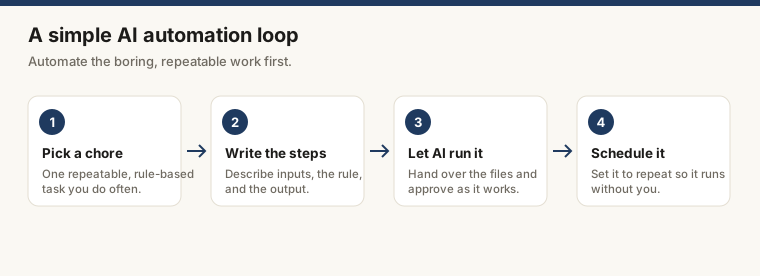
Pick a task you do the same way every time, describe the input, the rule, and the output in plain language, then let an AI run it while you spot-check. File renaming, receipt sorting, recurring report drafts, and inbox triage are strong first candidates. No code required for most of them.
Repetitive work does not get more interesting the hundredth time you do it. The part that surprises most people is how little it takes to hand it off: a clear instruction, a specific output format, a small test batch. AI tools have reached the point where writing a well-structured plain-language instruction is the entire skill requirement for a wide class of tasks.
This guide covers what kinds of tasks are worth automating, what makes an instruction reliable, four concrete workflows you can start today, and how Claude Cowork specifically handles recurring automation through connectors, skills, and scheduled tasks.
What “automating tasks with AI” actually means right now
The phrase covers a lot. At one end: you paste text into a chat window and ask Claude to reformat it. At the other end: a scheduled task connects to your Gmail, reads new receipts, categorizes them, and logs them to a spreadsheet, without you opening the app.
Both are real. Most people start near the first end and work toward the second. The practical gap between them is not technical skill; it is knowing which tasks have stable enough rules to hand off, and then describing those rules precisely enough that the AI can follow them without supervision.
What it is not: AI does not “learn your habits” from a few examples and start automating everything autonomously. It follows instructions. Good instructions produce reliable results. Vague instructions produce inconsistent ones. That relationship holds at every level of complexity.
Which tasks are worth automating
The best candidates share three properties. They are repeatable, meaning you do them the same way every time. They are rules-based, meaning there is a consistent logic you could write down. And they are time-consuming relative to their complexity, meaning the steps are tedious rather than difficult.
Tasks that fit that profile:
- Weekly report summaries drawn from the same sources each week
- Inbox triage: flagging, labeling, or drafting replies to common email types
- File renaming and organization based on content or naming conventions
- Receipt and expense categorization against a fixed category list
- Data extraction from PDFs, emails, or copied text into a structured table
- First-draft responses to recurring inquiry types
Tasks that do not fit:
- Anything where “done” looks different every time based on shifting judgment
- Legal review, medical decisions, or financial calculations that feed downstream systems
- Tasks with highly inconsistent input formats (hand-written notes, non-standard scans)
- Anything where an error has real consequences and the output will not be reviewed
AI is a first-pass processor. It is good at the mechanical work of applying a fixed rule to many inputs. It is not a replacement for judgment on edge cases, and it should not be treated as one.
The core principle: describe the rule, not the result
AI tools follow instructions. They do not infer intent from a vague request, and they do not ask clarifying questions before producing a result you did not want. For automation to work reliably, you need three things before you hand the tool any data:
- What goes in (the input format and source)
- What the rule is (the logic to apply)
- What should come out (the output format and destination)
Most people skip step two.
A weak instruction: “Organize my receipts.”
A workable one: “I am going to paste the text from a set of receipts. For each one, identify the vendor name, date, total amount, and the most likely expense category from this list: travel, meals, software, office supplies, other. Return a table with one row per receipt.”
The second version has a defined input, a fixed category list, and a specific output format. The result is predictable enough to run again next week.
A step-by-step approach
Step 1: Pick one task. Start with something you do at least weekly that follows the same pattern. File renaming and receipt sorting are good first choices because the inputs are concrete and you can verify the output by looking at it.
Step 2: Write the instruction. Describe the input, the rule, and the output. If the output needs to be a CSV, say so. If the category list is fixed, write it out in full. One sentence of context per field is usually enough.
Step 3: Test on a small batch. Run three to five examples before trusting the instruction with a full dataset. Check every field. Adjust the instruction if something is wrong, then test again. The instruction is the work.
Step 4: Run the full batch. Keep a copy of the originals until you have verified the output.
Step 5: Schedule it. If you will do this task again next week, the last thing you want is to redo the setup from scratch. Save the prompt. Use a tool that can run it on a schedule.
Four concrete workflows
Weekly report summary
You receive the same weekly status doc from three team members. Each one is long. You need the key points, decisions made, and open questions, in under 200 words.
The prompt pattern: “Summarize the following in plain language. Focus on decisions made, open questions, and next steps. Aim for under 150 words.”
Paste the source and you have a usable first draft in seconds. What to check: what is missing. Summaries drop minority opinions and caveats at higher rates than you would like. Read the summary as a skeptic.
With Claude Cowork, you can connect Google Drive through a connector and have this run automatically on a schedule each Monday morning. The connectors setup guide covers how to link Drive, Gmail, and Slack to Cowork so it can pull from the right sources without you copying anything manually.
Inbox triage
The task: flag emails that need a reply today, label the rest, and draft responses to the three most common inquiry types you get each week.
This is where Cowork’s connectors become useful. Claude Cowork runs on your desktop, works directly in your files and apps, and handles multi-step tasks. With a Gmail connector, it can read your inbox, apply your triage rules, and surface the items that need attention, without you opening the app first.
The instruction you write once: “Flag emails from clients that have not received a reply in more than 48 hours. Draft a one-paragraph holding reply for each. Label everything else as reviewed.”
What to check: edge cases. Inbox rules are rarely as clean as they look when written down. Review the first few runs carefully before trusting the output unsupervised.
File organization
A folder of scanned documents or downloaded PDFs with names like scan001.pdf or IMG_4892.jpg. You want them named clearly and sorted into subfolders.
Paste a list of filenames plus any context (project name, date range), and ask the AI to return a rename map. Cowork can go further: with access to your local files, it can read the document content, apply naming rules, and move files to the right folder.
What to check: AI cannot read inside image files unless the model supports vision, and a scanned PDF is a photograph. The text must be selectable for extraction to work.
Data extraction from email or PDF
You copy a table from a PDF or email. It arrives as a wall of text. A prompt like “Convert this into a CSV table with these column headers: Date, Item, Quantity, Unit Price, Total” usually produces a clean result in one step.
For larger volumes or recurring extraction, this is where saving the instruction as a reusable skill pays off. Skills in Claude Cowork make specialized outputs repeatable: you define the prompt, the format, and the rule once, and Cowork applies it consistently every time you invoke the skill. The skills guide covers how to set one up for a specific output format.
How Claude Cowork handles recurring automation
The step-by-step approach above works for one-off tasks. For tasks you want to run on a cadence, Cowork adds two things: connectors and scheduled tasks.
Connectors let Claude reach your apps: Slack, Google Drive, Gmail, and more. Instead of copying data into a chat window, Cowork reads from the source directly. You describe the task once; the connector handles the data retrieval.
Scheduled tasks let you set a task to run hourly, daily, weekly, on weekdays, or on demand. You use the /schedule command to set the cadence. One important constraint: scheduled tasks only run while your computer is awake and the Cowork desktop app is open. It is not a cloud service running in the background. If you need a Monday morning summary, your machine needs to be on Monday morning.
The combination of connectors, skills, and scheduled tasks is what moves automation from “paste and prompt” to “runs on its own.” The guide on connectors, skills, and scheduled tasks together walks through a full setup for a recurring workflow.
If you are new to Cowork and want a plain-language overview of what it is and how it works, what is Claude Cowork is the right starting point. If you want to see the full range of automatable workflows, the workflows library has tested setups for common tasks organized by category.
What to be realistic about
AI automation works well when the rule is stable. It breaks down when the definition of “done” changes from run to run, when input formats are inconsistent, or when errors carry real consequences.
For those cases, AI is still useful as a first-pass processor, but a human review step is not optional. It should not be treated as one.
The first version of any automated workflow usually needs two or three rounds of instruction refinement before it is reliable. That is not a failure. That is what building a reliable instruction looks like.
One more thing: do not paste passwords, full card numbers, or personally identifiable client data into general-purpose AI tools. Read the privacy policy of any tool before sending anything sensitive. Enterprise tools often offer data isolation; consumer tools typically do not.
Where to go next
Start with the beginner course at /learn, which walks through the fundamentals of working with Claude before adding automation layers. Once you have run one task reliably, the workflows library has ready-to-use setups for the most common automation patterns.
Frequently asked questions
Is it safe to let AI automate tasks?
For most routine chores, yes, with two conditions: keep sensitive data (passwords, financial account numbers, medical records) out of the prompt, and review the output before anything gets sent or deleted. AI works best as a first-pass processor, not a final decision-maker.
What tasks are good first candidates for AI automation?
Rule-based, repeatable tasks with clear inputs and outputs work best: renaming batches of files, sorting receipts by category, summarizing weekly reports, triaging inboxes, and reformatting data. Tasks that require judgment calls, change every time, or carry real consequences if wrong are poor fits.
Do I need to know how to code?
No. The examples in this guide use natural-language prompts in tools like Claude. If you want to schedule tasks or chain steps together, tools like Claude Cowork handle that with a /schedule command and visual connectors. Coding becomes useful only when you want custom logic or faster processing of very large files.
How does Claude Cowork make automation repeatable?
Cowork runs on your desktop, connects to your apps through connectors, saves reusable steps as skills, and runs recurring work on a schedule. You describe a task once, and Cowork can handle it on a cadence you set, as long as your computer is awake and the app is open.